Class Trade Process
Check out this comprehensive guide:
Sign up or log in to Wix


Find your section
Find your class
Comment your time
Comment or like
the sections you want
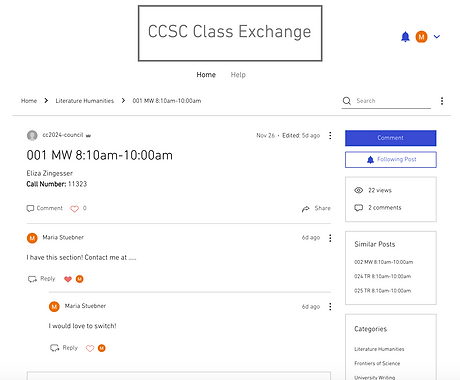
That
person will then be sent
an email notification
And from there you two can trade!
1. Sign up or log in to Wix. This is super easy and can be done through Google with a Columbia email.
2. Find the class you want to switch.
3. Find your section.
4. Post on the section you have, and if someone comments or likes your post, you will get an email notification.
5. Comment on the section you want if someone has already posted there, and similarly, that person should get a notification.
6. Either you or that person should reach out and confirm both of you are set on trading.
7. Now that you have a trading partner, you can go to SSOL, and when you both are in a registration window, quickly drop and add each other's sections — caution, this won't work if there's a waitlist for a class, and has a tiny chance of failure if someone else adds the class simultaneously.
8. If Step 7. isn't an option, you can also email the Core office (corecurriculum@columbia.edu) with your UNI's, section numbers, and call numbers while expressing your desire to switch. They should help approve the trade — though caution, response times may be mixed.
9. Once, you've completed your trade, please delete any posts/comments on this site to avoid confusion for everyone else — thanks for using the site!
Good luck!
Follow us @ccsc2024 on Instagram &
Email us at ccsc2024-council@columbia.edu!